
How Should You Maintain an Indoor Golf Simulator?
Last Updated: October 26, 2026
Quick Summary
Indoor golf simulator maintenance involves daily cleaning of the hitting mat and sensor lens with dry cloths, weekly deep cleaning and impact screen inspection, and monthly sensor calibration to keep your equipment functioning accurately. Proper indoor golf simulator maintenance prevents costly repairs and extends equipment lifespan.
- Wipe the hitting mat daily with a dry cloth and clean sensor lens with microfiber cloth without liquids
- Deep clean the mat weekly with a slightly damp cloth and mild soap, and test shot accuracy
- Recalibrate sensors monthly by clearing the bay and following on-screen prompts to detect drift or errors
- Never use harsh cleaners, alcohol, or excessive water near electronics as sensors are sensitive components
- Rotate your stance position weekly to distribute wear evenly and replace the mat when you notice thin spots
Table of Contents
- Why Indoor Golf Simulator Maintenance Matters
- Daily and Weekly Maintenance Tasks
- Building Your Golf Simulator Maintenance Checklist
- Golf Simulator Impact Screen Cleaning and Care
- Golf Simulator Hitting Mat Maintenance Best Practices
- Golf Simulator Sensor Calibration and Accuracy
- Troubleshooting Common Maintenance Issues
- Schedule Your Maintenance Plan at Open Tee Golf
- Frequently Asked Questions
Why Indoor Golf Simulator Maintenance Matters
Proper indoor golf simulator maintenance is important. Your equipment is an investment in your game.
Think of simulator maintenance like tuning a car.
The good news: maintaining an indoor golf simulator isn't complicated.
Daily and Weekly Maintenance Tasks
Daily checks:
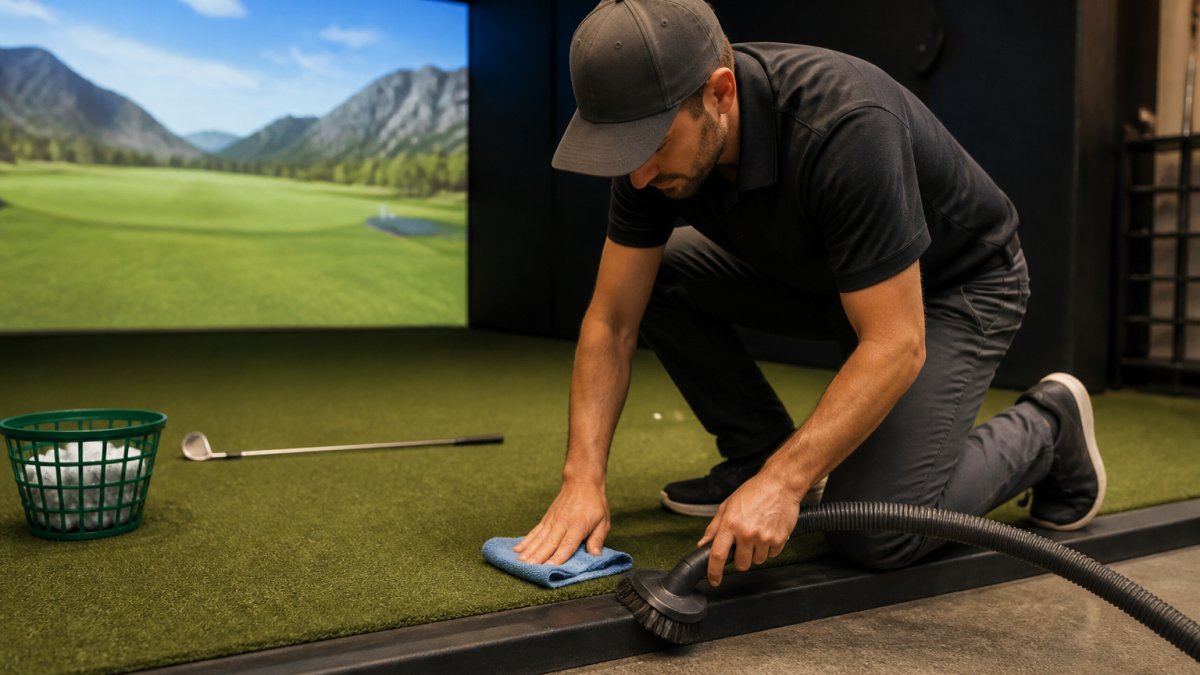
- Wipe down the hitting mat with a dry cloth
- Clean the sensor lens with a microfiber cloth (no liquids)
- Check that all cables are seated firmly in their connections
- Visually inspect the impact screen for debris or marks
Weekly tasks (add these once per week):
- Deep clean the hitting mat with a slightly damp cloth and mild soap
- Wipe all visible sensors and optical components
- Check the bay for loose items that could interfere with sensor tracking
- Test a few shots to confirm data is reading normally
A common mistake is using harsh cleaners or excessive water near electronics. The sensors and computers that power your simulator are sensitive. Stick with dry cloths and minimal moisture. If something looks dirty, a barely-damp cloth works better than soaking it.
Building Your Golf Simulator Maintenance Checklist
A written checklist can help you keep track of maintenance tasks.
| Task | Frequency | Time | What to Check |
|---|---|---|---|
| Wipe hitting mat | Daily | 2 min | Debris, marks, wear patterns |
| Clean sensor lens | Daily | 1 min | Dust, smudges, clarity |
| Check cable connections | Daily | 1 min | Loose plugs, bent connectors |
| Deep clean mat | Weekly | 5 min | Stubborn dirt, mat surface integrity |
| Inspect impact screen | Weekly | 3 min | Tears, discoloration, dents |
| Test shot accuracy | Weekly | 5 min | Data consistency, sensor response |
| Recalibrate sensors | Monthly | 10 min | Baseline readings, drift detection |
| Full equipment inspection | Quarterly | 20 min | All components, connections, wear |
The key is consistency.
Golf Simulator Impact Screen Cleaning and Care
Safe cleaning steps:
- Use only a microfiber cloth (never paper towels or rough fabrics)
- Wipe gently in circular motions, not back-and-forth scrubbing
- For stubborn marks, use a cloth barely dampened with distilled water
- Never use glass cleaner, alcohol, or abrasive products
- Allow the screen to air dry completely before use
Golf Simulator Hitting Mat Maintenance Best Practices
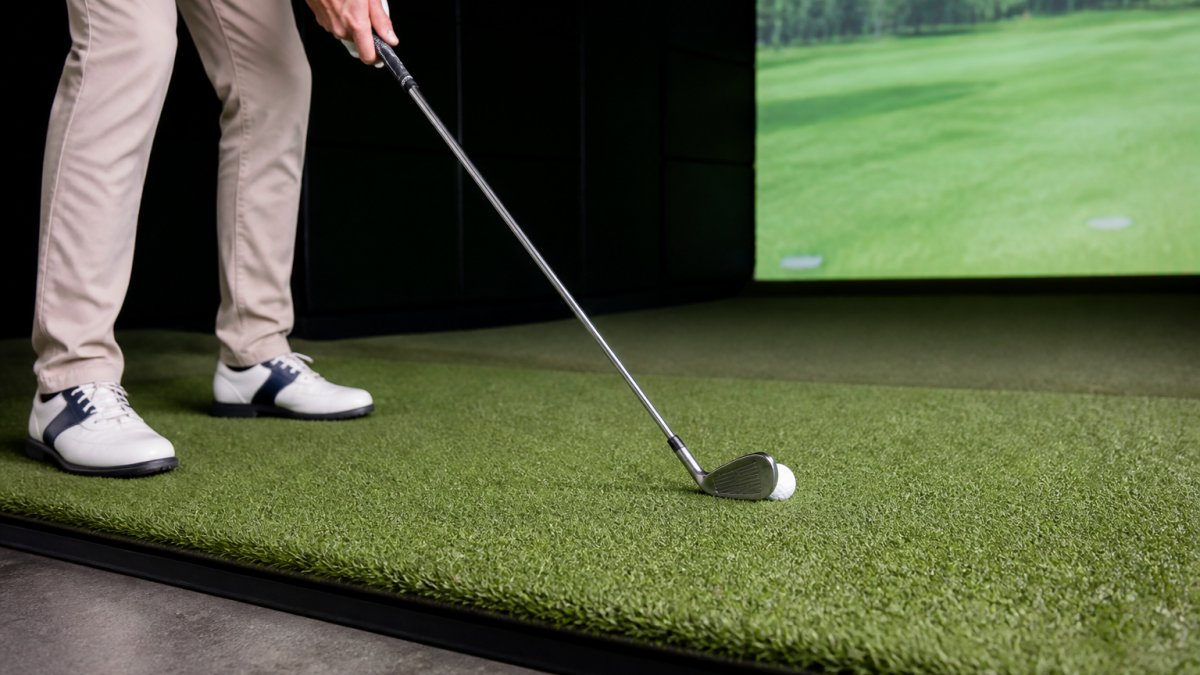
Best practices for mat care:
- Rotate your stance position weekly to distribute wear evenly
- Clean the mat surface after every session (dry cloth is fine)
- Use a mat brush weekly to lift compressed fibers and restore cushioning
- Inspect for worn spots or divots that could affect club contact
- Replace the mat when you notice consistent thin spots or uneven surfaces
Golf Simulator Sensor Calibration and Accuracy
Sensors are part of your simulator. Open Tee Golf's key features include military-grade shot-tracking data.
Monthly calibration process:
- Clear the bay of all objects except the mat and sensors
- Access the calibration menu on your simulator display
- Follow the on-screen prompts (usually involves taking a few practice swings)
- Wait for the system to complete its analysis
- Review the calibration report for any drift or errors
Open Tee Golf offers Full Swing simulators. Visit Open Tee Golf to learn more.
Troubleshooting Common Maintenance Issues
Most issues resolve with basic troubleshooting. The key is catching problems early. A monthly inspection and weekly testing routine prevents most issues from becoming serious.
Schedule Your Maintenance Plan at Open Tee Golf
Consistency beats perfection.
Members benefit from 24/7 facility access and private bays. Visit Open Tee Golf to learn more about membership.
Your simulator investment deserves proper care.
Frequently Asked Questions
How often should an indoor golf simulator be maintained?
Indoor golf simulator maintenance follows a tiered schedule: daily (visual checks and mat inspection), weekly (screen and lens cleaning), monthly (sensor verification and deep mat cleaning), and quarterly (full system calibration). The exact frequency depends on usage intensity. High-traffic facilities need more frequent attention. At Open Tee Golf, the 24/7 access model means consistent monitoring catches issues before they affect your data accuracy or playing experience.
What should be included in a golf simulator maintenance checklist?
A comprehensive golf simulator maintenance checklist covers: impact screen condition and cleanliness, hitting mat wear and compression, sensor alignment and calibration, projector lens clarity, bay lighting, floor safety, and software updates. Track completion dates for each task. Monthly checklists should include sensor accuracy testing using calibration balls. Quarterly reviews should examine the entire bay for wear patterns, cable integrity, and structural issues. Keep records to identify recurring problems and warranty claims.
How do you clean a golf simulator impact screen without damaging it?
Clean your impact screen weekly using a microfiber cloth and distilled water only, never use harsh chemicals, alcohol, or abrasive materials. Use gentle, circular motions and avoid pressing hard. For stubborn marks, slightly dampen the cloth. Check for small tears or punctures monthly; even tiny damage can spread under ball impact. If your screen shows permanent discoloration or pinholes, replacement is necessary to maintain shot accuracy. Proper cleaning prevents buildup that degrades image quality and sensor readings.
What causes inaccurate golf simulator readings, and how do you fix it?
Inaccuracy typically stems from misaligned sensors, a dirty impact screen, compressed or worn hitting mat, or uncalibrated software. Start by running a sensor calibration using your system's built-in test. Clean the screen and inspect the mat for uneven wear. If readings remain off, check that the mat is level and the sensors are unobstructed. Professional calibration quarterly ensures your Full Swing data reflects your actual swing. Beginners and competitive players alike depend on accurate data, so addressing drift quickly protects your investment.
The difference between a simulator that works and one that frustrates you comes down to maintenance discipline. At Open Tee Golf, we've built maintenance support into our member experience because we know consistency drives results. Your game improves when your equipment is reliable. Your equipment stays reliable when you maintain it properly. Explore membership options and discover how our facility supports your practice goals with equipment you can trust.
